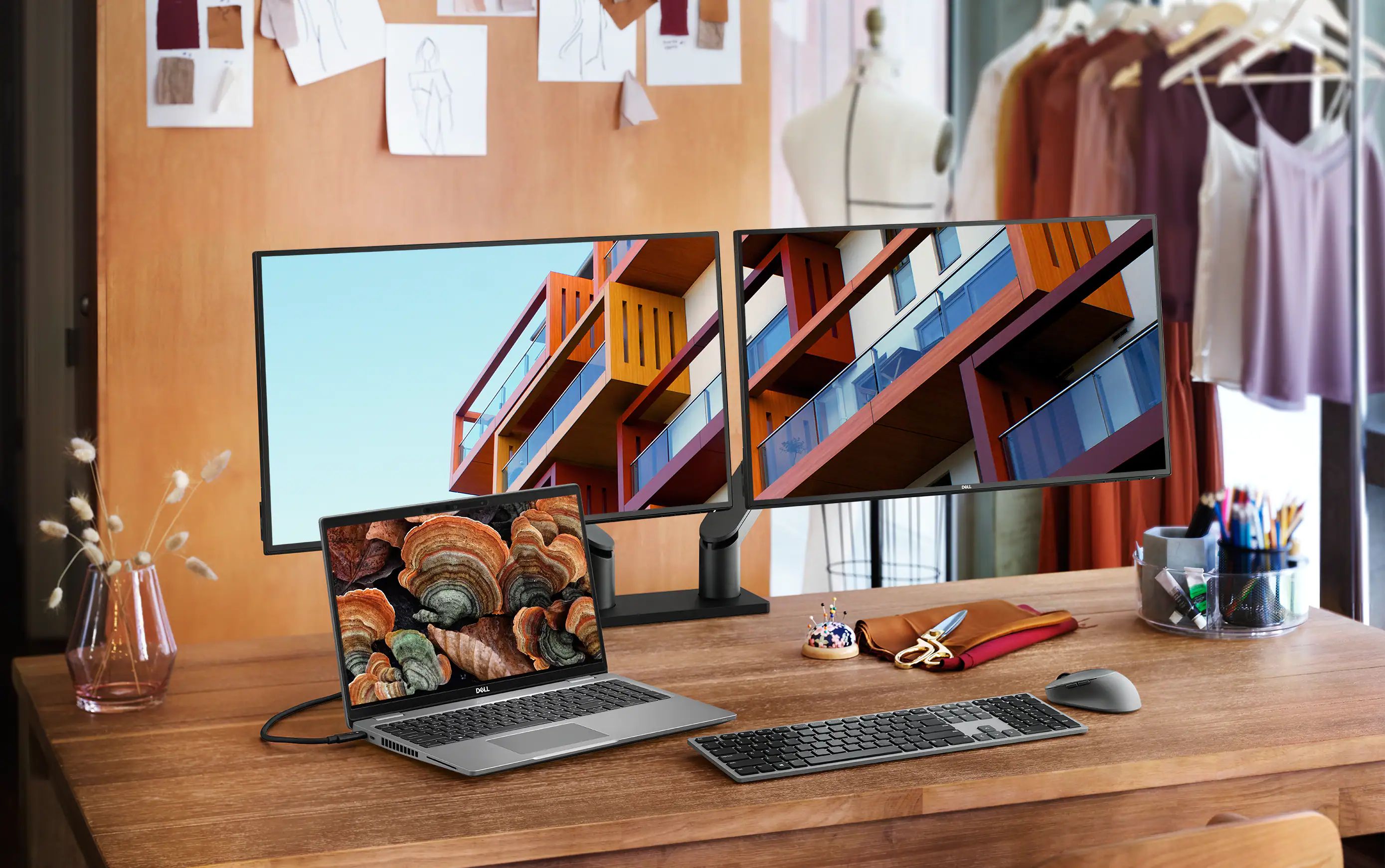
How to Set Up a Multi-Monitor Workspace
Discover how to set up a multi-monitor workspace to boost your productivity and streamline your workflow with our step-by-step guide.
Benefits of a Multi-Monitor Setup
Setting up a multi-monitor workspace can significantly boost your productivity and enhance your overall computing experience. With multiple screens, you can easily manage different tasks simultaneously, reducing the need to constantly switch between tabs or windows. This setup is particularly beneficial for professionals who need to reference multiple documents, spreadsheets, or applications at once. Gamers and creative professionals also find multi-monitor setups advantageous, as they offer a more immersive and expansive display area. By distributing your workflow across several screens, you can maintain better focus and streamline your tasks more effectively.
Choosing the Right Monitors
Selecting the right monitors is crucial for creating an effective multi-monitor workspace. Consider factors such as screen size, resolution, and panel type. Larger screens with higher resolutions provide more workspace and crisper images, making them ideal for detailed tasks. IPS panels offer better color accuracy and viewing angles compared to TN panels, which are often faster but less vibrant. Additionally, ensure that the monitors have the necessary ports for connectivity and that they are compatible with your computer's graphics card.
Graphics Card and Connectivity
A robust graphics card is essential for supporting multiple monitors. Most modern graphics cards can handle two to three monitors with ease, but it's important to check the specifications. Ensure your card has enough HDMI, DisplayPort, or DVI outputs to connect all your screens. If your graphics card doesn't support multiple monitors, you might need to upgrade or consider external adapters. Additionally, make sure you have the appropriate cables and adapters to connect your monitors to the graphics card.
Arranging Your Monitors
The physical arrangement of your monitors can impact your comfort and productivity. Common setups include side-by-side, stacked, or a combination of both. The key is to position the monitors at a comfortable viewing angle and distance. Ideally, the primary monitor should be directly in front of you, with secondary monitors angled slightly towards you. This reduces neck strain and makes it easier to glance between screens. Adjustable monitor stands or mounts can help you achieve the perfect alignment and height for your setup.
Configuring Display Settings
Once your monitors are physically set up, the next step is to configure the display settings on your computer. In your operating system's display settings, you can arrange the monitors to match their physical layout. This ensures that the mouse cursor moves smoothly between screens. You can also adjust the resolution, orientation, and scaling of each monitor to suit your preferences. Some operating systems allow you to set different wallpapers for each screen, adding a personal touch to your workspace.
Managing Cables and Clutter
A multi-monitor setup can quickly become cluttered with cables, which can be distracting and unsightly. Use cable management solutions such as cable clips, sleeves, and ties to keep everything organized. Labeling cables can also make it easier to troubleshoot any connectivity issues. Additionally, consider investing in a docking station if you frequently connect and disconnect your monitors. This can streamline your setup and reduce wear and tear on your ports and cables.
Optimizing Software for Multi-Monitor Use
Certain software applications are designed to take full advantage of a multi-monitor setup. For instance, many video editing and graphic design programs allow you to undock panels and spread them across multiple screens. Window management tools can help you snap windows to specific areas of your monitors, making it easier to organize your workspace. Explore the settings of your frequently used applications to see if they offer any multi-monitor support features that can enhance your workflow.
Troubleshooting Common Issues
Despite the benefits, a multi-monitor setup can sometimes present challenges. Common issues include display flickering, resolution mismatches, and connection problems. Ensure your graphics drivers are up-to-date, as outdated drivers can cause compatibility issues. If a monitor isn't being detected, check the cable connections and try a different port. Sometimes, a simple restart can resolve display issues. If problems persist, consulting the user manuals for your monitors and graphics card or seeking help from online forums can provide additional solutions.